Picking the best TV Picture Settings for LG, Samsung, Sony, TCL
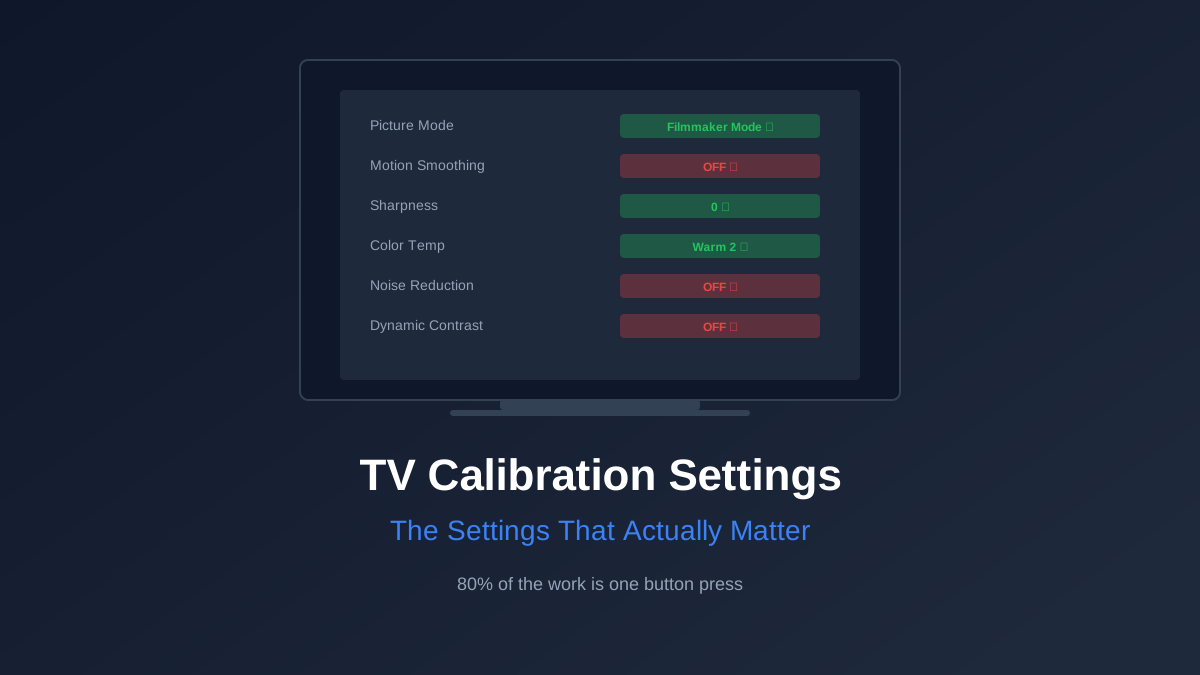
Switch to Filmmaker Mode or Cinema mode, turn off motion smoothing, and you're 80% done. The remaining 20% matters, but most of the "calibration" advice online is overthinking it.
We see forum threads with 47 replies debating whether contrast should be 87 or 89 on a particular panel. Meanwhile the person asking hasn't turned off motion smoothing yet, so their $2,000 OLED looks like a daytime soap opera. Let's fix the settings that actually make a visible difference, in order of impact.
The 80% Solution: Filmmaker Mode
Every major TV brand now ships with Filmmaker Mode, a standardized picture preset developed by the UHD Alliance with input from actual filmmakers. One button press disables post-processing, sets color temperature to the D65 reference standard, and locks frame rate to the content's native cadence. LG, Sony, Samsung, TCL, Hisense, and Vizio all support it on 2022+ models.
If your TV has Filmmaker Mode, select it and you're most of the way there. On Sony sets it's called "Cinema" or "Custom" depending on the model year. Samsung labels it "Filmmaker Mode" directly. LG puts it in the picture mode selector alongside Vivid, Standard, and Game.
If your TV predates Filmmaker Mode, look for "Cinema" or "Movie" mode. These have existed for years and do roughly the same thing: disable noise reduction, turn off motion interpolation, and set a warmer color temperature. They're not as standardized as Filmmaker Mode, but they're a massive improvement over "Standard" or (god forbid) "Vivid."
Rob's take
Motion smoothing is off by default on exactly zero TVs out of the box. It is always on. It always makes movies look wrong. Every TV ships with the soap opera effect enabled and 'Standard' mode selected, and manufacturers do this deliberately because showroom demos favor brightness and motion sharpness over accuracy. The 5-minute settings pass in this guide undoes the worst of that damage for free.
Motion Smoothing: The Single Most Impactful Setting
This is the soap opera effect. Your TV takes 24fps film content and interpolates it to 60 or 120 frames per second, making everything look like it was shot on a camcorder in a Best Buy showroom. It's the number one reason expensive TVs look "wrong" out of the box.
Every brand hides it under a different name:
- LG: TruMotion (set to Off)
- Sony: Motionflow / CineMotion (set to Off)
- Samsung: Motion Rate / Auto Motion Plus (set to Off)
- TCL: Motion Clarity / Action Smoothing (set to Off)
- Hisense: Smooth Motion / Motion Enhancement (set to Off)
Turn it off. Full stop. If you watch a lot of live sports and genuinely prefer the smoothed look for that content, create a separate picture mode with it enabled and switch when the game is on. But for movies, TV shows, and gaming, interpolation adds artifacts and destroys the director's intended look.
Filmmaker Mode disables this automatically, which is why it's step one.
Sharpness: Set It to Zero
This is the second most impactful change, and it's counterintuitive. The "Sharpness" control on modern TVs does not make the image sharper. It adds artificial edge enhancement, creating bright halos around high-contrast edges that make everything look crunchy and processed.
On a 4K panel, the native resolution is already sharp enough. The pixels are small enough that at normal viewing distances (use our viewing distance calculator to check yours), you can't see individual pixels anyway. Adding edge enhancement on top of that just introduces artifacts.
Set sharpness to 0. On some Samsung models, the neutral point is 0. On some LG and Sony sets, it's technically a few clicks above zero, but 0 is close enough that you won't notice the difference. If you want to be precise, look up your specific model on rtings.com, where they measure the exact neutral point for hundreds of TVs.
Color Temperature: Warm (Trust Us)
Set your color temperature to Warm or Warm2. This is going to look yellow and uncomfortable for about 15 minutes if you've been watching on the Cool or Standard setting. Push through it. Your eyes adapt.
Content is mastered on reference monitors calibrated to the D65 white point, which corresponds to "Warm" on consumer TVs. The Cool and Standard settings push blue because manufacturers know TVs look "brighter" and "more vivid" under showroom fluorescent lighting with a blue-shifted white point. It sells TVs. It doesn't reproduce what the colorist intended.
After a week on Warm, switch back to Standard for 30 seconds. Standard will look aggressively blue, like someone draped a cyan filter over the screen. That blue tint was there the whole time. You just couldn't see it because you were used to it.
Backlight (or OLED Brightness): The Real Brightness Control
Here's where it gets confusing: the setting labeled "Backlight" on LED/LCD TVs (or "OLED Brightness" on OLEDs) is the actual brightness control. This is the one you should adjust based on your room.
- Dark, dedicated theater room: 40-60%. Protects your eyes during long sessions and on OLEDs, reduces the already-minimal burn-in risk.
- Living room with some ambient light: 60-80%.
- Bright room with windows: 80-100%.
This is pure taste. There's no "correct" value. Adjust it until the image looks comfortable for your room's lighting conditions. Some people even adjust it by time of day, turning it down for evening viewing.
Brightness (the Misnamed One): Leave It Alone
The setting labeled "Brightness" does not control brightness. It controls black level. This is a holdover from CRT-era terminology that the industry refuses to fix.
Raising it lifts the black floor, turning blacks into grey and washing out shadow detail. Lowering it crushes blacks, destroying shadow detail and making dark scenes into featureless voids. The default value (usually 50) is almost always correct. Leave it there unless you have a calibration disc or pattern generator telling you otherwise.
Contrast: Also Leave It Alone
Contrast is typically set to 85-95 from the factory, and that default is usually close to optimal. Raising it clips white highlights, blowing out bright areas and losing detail in clouds, snow, and skin tone highlights. Lowering it makes the image look flat and lifeless.
Like brightness, this is a setting where the factory default in Cinema/Filmmaker Mode is almost always correct. If you're going to touch it, lower it by 5-10 points from default, never raise it. But we'd recommend just leaving it alone.
HDR: Let the TV Handle It
For HDR10 and Dolby Vision movie content, your TV's auto-detection and tone mapping should handle things correctly without intervention. Make sure HDR is enabled on whatever HDMI input your sources are connected to (some TVs require you to enable "HDMI Deep Color" or "Input Signal Plus" per port).
For gaming, enable HGIG (HDR Gaming Interest Group) mode if your TV supports it. This tells games to handle their own tone mapping rather than fighting with the TV's tone mapping, preventing the double-mapping artifacts that make some HDR games look worse than SDR. On LG OLEDs it's under HDMI Settings. On Samsung it's in the Game Mode options.
Settings That Don't Matter (Turn Them Off Anyway)
Noise reduction: Off. On modern 4K content, there's no noise to reduce. On lower-quality streaming content, noise reduction smears fine detail. Leave it off.
Dynamic contrast: Off for movies. This adjusts contrast on a scene-by-scene or frame-by-frame basis, which sounds useful but creates distracting brightness pumping in dark scenes. For casual daytime TV watching, it's fine. For movies in a dark room, it's a distraction.
Eco mode / Energy saving: Off. This dims the backlight to save power, which is fine if saving electricity matters more than picture quality. But if you've spent $1,500+ on a TV and you're reading a calibration guide, you probably care about picture quality. Turn it off and control brightness manually via the backlight setting.
AI upscaling: Leave it on. Unlike the other post-processing features, modern AI upscaling (LG's AI Super Upscaling, Sony's XR 4K Upscaling) genuinely improves 1080p streaming content on a 4K panel. The difference is subtle but positive, especially on services that compress aggressively.
When Professional Calibration Is Worth It
If you have a dedicated dark theater room with controlled lighting and an OLED or high-end LCD, a professional ISF calibration ($300-500) can extract the last 5-10% of color accuracy. A calibrator will measure your specific panel with a spectrophotometer, build a custom color profile, and adjust white balance and color management to hit reference targets precisely.
For a living room with mixed or variable lighting, professional calibration isn't worth the cost. Ambient light shifts color perception enough that the precision gains are invisible in practice. You'll get the same visible benefit from the free settings changes in this guide.
The sweet spot: do the manual settings above, live with them for a month, and if you find yourself wanting more accuracy in a dark, controlled room, then book the ISF calibration. Most people discover the manual settings were enough.
The Quick Reference
If you want the cheat sheet version for any TV:
- Picture mode: Filmmaker Mode (or Cinema/Movie)
- Motion smoothing: Off
- Sharpness: 0
- Color temperature: Warm
- Backlight/OLED brightness: adjust to room
- Brightness (black level): default (50)
- Contrast: default
- Noise reduction: Off
- Dynamic contrast: Off
- Eco mode: Off
Those ten changes take five minutes and will make more of a visible difference than a $500 calibration in most rooms. If you're shopping for a budget 4K TV or upgrading your display, get the right TV for your room first, then spend five minutes on settings before worrying about anything else.
Rob Teller
Founder, CinemaConfig
15 years in consumer hardware and software, mostly on the product side. NZXT (cases and cooling), Asetek (liquid cooling, global sales), a short run advising on Alienware's roadmap at Dell, then four ... More about Rob · Affiliate disclosure


