Actually Test Your Surround Sound (Most People Get This Wrong), step by step
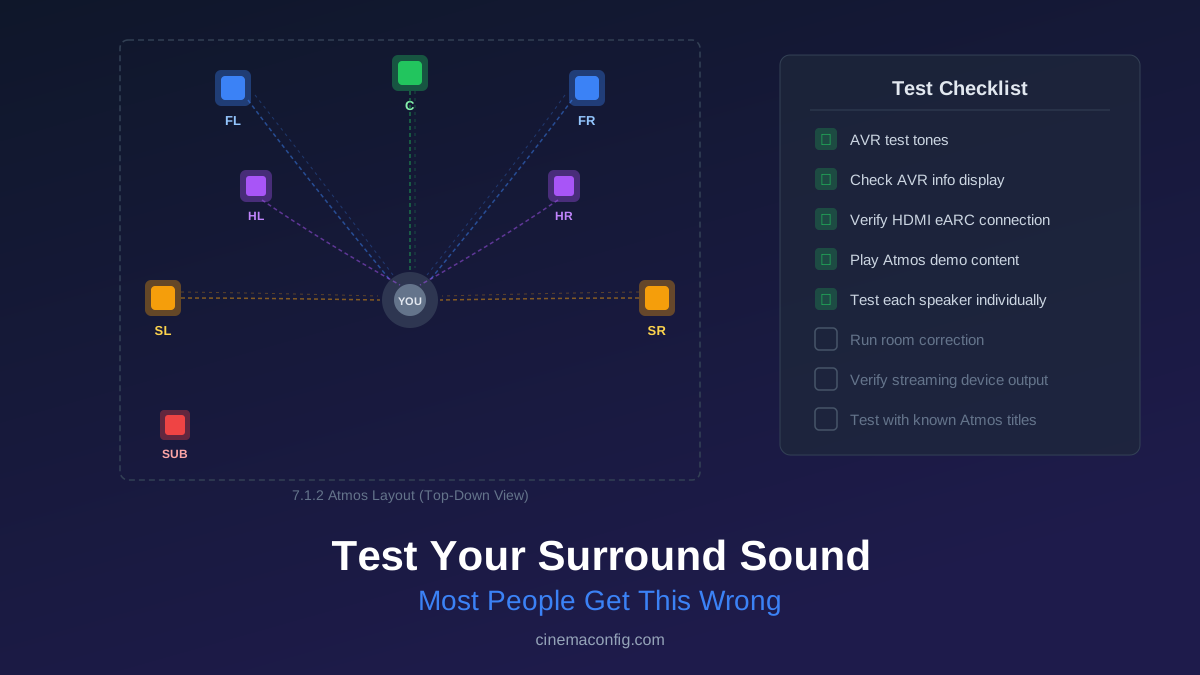
That "5.1 surround sound test" YouTube video you played? It was stereo. YouTube doesn't support surround sound in most browsers. You just tested your left and right speakers and thought everything was working.
This is the single most common mistake in home theater setup. People play a test video, hear sound from multiple speakers, and assume surround is working. What's actually happening: your AVR is taking a stereo signal and upmixing it to all channels using Dolby Surround or DTS Neural:X. Every speaker is playing, but they're all playing the same two-channel source spread around the room. That's not surround sound. That's stereo with extra steps.
Here's how to actually verify that your system is decoding and playing discrete surround channels.
Step 1: Your AVR's Built-In Test Tones
Every AVR made in the last 15 years has a speaker test tone generator buried in its setup menu. On Denon and Marantz receivers, it's under Setup > Speakers > Test Tone. On Yamaha, it's Setup > Speaker Setup > Test Tone. Sony puts it under Speaker Settings > Test Tone.
Run it. You'll hear a pink noise sweep that moves from speaker to speaker: front left, center, front right, surround right, surround left, then subwoofer. On Atmos systems, it continues through your height channels.
This is the only test that guarantees each speaker is wired correctly and receiving its own discrete signal. If your surround left is silent during its turn, you have a wiring problem. If your center and front left are swapped, you'll hear it immediately. No YouTube video can do this because YouTube never sends discrete surround channels to your AVR in the first place.
Rob's take
The Dolby Atmos demonstration trailer — particularly 'Amaze' — is the most reliable calibration content available. If you can hear distinct overhead movement during the leaf sequence, your height channel placement and level calibration are working. If the overhead effects feel vague or attached to the front of the room, your heights are either misplaced, too quiet, or running with wrong delay settings.
Step 2: Check What Your AVR Is Actually Decoding
This is the step most people skip, and it's the one that matters most for everyday use.
While playing content, press the "Info" or "Status" button on your AVR remote. Every modern receiver will show you two critical pieces of information: the input signal format and the output processing mode. You want to see something like "Dolby TrueHD + Atmos" or "DTS-HD MA 7.1" on the input side. If you see "PCM 2ch" or "Dolby Digital 2.0," your system is receiving stereo regardless of what the content claims to be.
This display is the truth detector. The streaming app might show an Atmos badge. Your TV might say it's passing through surround. But the AVR's info screen shows what's actually arriving at the decoder. Trust it over everything else.
Step 3: Play Content That Is Confirmed Surround
You need test material that you know for certain contains a discrete multichannel mix. Here are the tiers, from most reliable to least.
Tier 1: Blu-ray Discs (Gold Standard)
Physical media is the only way to get lossless Dolby TrueHD Atmos or DTS:X. No compression, no compatibility downgrades, no app bugs. The Dolby Atmos Demo Disc (available from Dolby's website) is purpose-built for testing: individual channel checks, overhead sweeps, and reference-level demo clips. For real movie content, Blade Runner 2049, Mad Max: Fury Road, and Dune (2021) are go-to reference discs with aggressive, well-mixed Atmos tracks that put every speaker to work.
Tier 2: Streaming With the Right Device
Netflix and Disney+ both stream Dolby Atmos on supported titles, but only through specific devices and connections. An Apple TV 4K or NVIDIA Shield Pro connected directly to your AVR via HDMI will pass Atmos (as Dolby Digital Plus with Atmos metadata). Good test titles:
- Stranger Things Season 4 (Netflix) has an Atmos mix with aggressive overhead and surround use, especially in the Vecna scenes.
- Dune: Part Two (streaming, various platforms) puts the height channels through a workout during the sandworm sequences.
- Gravity (available on multiple platforms) uses surround channels for spatial debris and score placement that's immediately obvious.
While playing any of these, check your AVR info display. You should see "Dolby Digital Plus + Atmos" or "Dolby Atmos." If you see "Dolby Digital 5.1" or lower, something in your signal chain is stripping the Atmos metadata.
Tier 3: Built-In TV Apps (Proceed With Caution)
This is where most people's surround sound silently breaks. Your TV's built-in Netflix or Disney+ app might display the Atmos badge on a title, but many TVs downmix to stereo or basic 5.1 before sending audio to the AVR over HDMI ARC. Even TVs with eARC sometimes default to PCM stereo output until you manually change the audio output setting to "passthrough" or "bitstream."
Check your TV's sound output settings. Look for "Digital Audio Out" and set it to "Auto" or "Passthrough" (the exact wording varies by manufacturer). Then verify on the AVR info display that the signal arriving is actually Atmos, not a downmixed version.
The Five Problems That Break Surround Sound
If your AVR info display is showing stereo or basic Dolby Digital when it should show Atmos, one of these is the culprit.
1. ARC instead of eARC. Standard HDMI ARC can pass Dolby Digital 5.1 (lossy) but cannot pass lossless Dolby TrueHD Atmos or high-bitrate DTS:X. If your only connection between TV and AVR is ARC (not eARC), you're capped at compressed 5.1 regardless of your content source. The fix: connect your streaming device directly to the AVR, not the TV. Or confirm both your TV and AVR support eARC and that it's enabled on both sides.
2. TV app downmixing. As mentioned above, built-in TV apps frequently output stereo even when the content supports Atmos. The fix: use an external streaming device plugged into your AVR.
3. Wrong AVR input mode. If your AVR is set to "Stereo" or "Direct" mode, it will play exactly what it receives without upmixing, which is correct. But if the input is already stereo (because of problems 1 or 2), you'll get stereo from two speakers. The confusion: switching to "Dolby Surround" mode makes all speakers play, which sounds like surround is "working," but it's still upmixed stereo. Check the input format, not just whether all speakers are making noise.
4. Streaming plan limitations. Netflix requires its Premium plan for Atmos audio. The Standard plan tops out at 5.1. Disney+ includes Atmos on all plans, but only on supported devices. If your Netflix plan is Standard, you will never see Atmos regardless of your hardware setup.
5. HDMI cable or port mismatch. eARC requires HDMI 2.1 cables and the specific eARC-labeled HDMI port on both your TV and AVR. Using the wrong port (most TVs have 3-4 HDMI ports but only one supports eARC) silently downgrades you to regular ARC. Check your TV manual for which port is eARC, and make sure that's where your AVR is connected.
The Quick Verification Routine
Once your system is set up, this takes about three minutes and confirms everything is working correctly.
- Run your AVR's built-in test tones. Confirm every speaker plays during its turn and sounds like it's in the right position.
- Play a known Atmos title (Stranger Things S4, Dune, or any title with confirmed Atmos on your platform).
- Press Info on your AVR remote. Confirm the input shows Dolby Atmos (or Dolby Digital Plus + Atmos for streaming, Dolby TrueHD + Atmos for Blu-ray).
- During a surround-heavy scene, mute your front speakers using the AVR's channel level controls. You should still hear discrete audio from the surrounds and heights, not silence.
If all four checks pass, your surround sound is genuinely working. Not upmixed stereo pretending to be surround. Actual discrete multichannel audio hitting every speaker with its intended signal.
If you're setting up Atmos for the first time or rethinking your speaker placement, getting the physical layout right is half the battle. The other half is making sure the signal chain delivers what your speakers are capable of playing. Most people nail the speaker positions and never check the signal. Now you know how to check both.
Rob Teller
Founder, CinemaConfig
15 years in consumer hardware and software, mostly on the product side. NZXT (cases and cooling), Asetek (liquid cooling, global sales), a short run advising on Alienware's roadmap at Dell, then four ... More about Rob · Affiliate disclosure


